Bursary System
Feature Summary
The bursary feature allows attendees to apply for financial assistance directly through the event platform. Organizers can review, approve, or reject applications to ensure accessible participation for all.
Who can use this feature
All organization members are allowed to enable and review bursaries
How to enable bursaries
- Create or Edit an Event
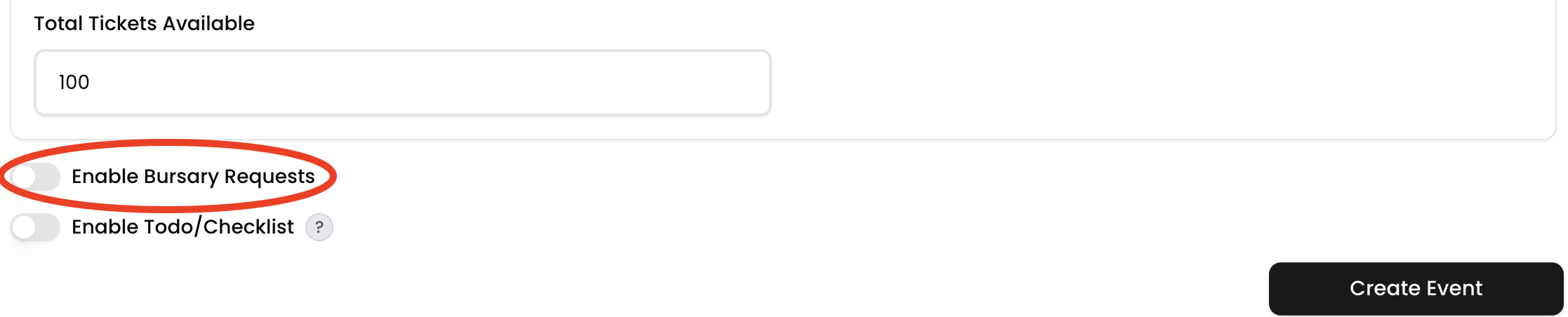
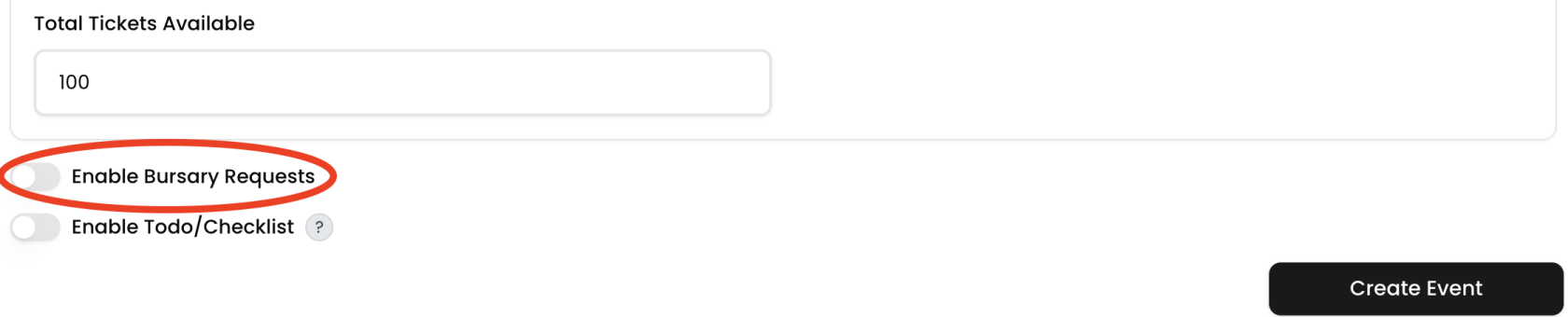
Begin by creating a new event or editing an existing one. SelectToggleifonits“Bursary Request”
Enable the bursary option to allow attendees to apply for financial support.
-
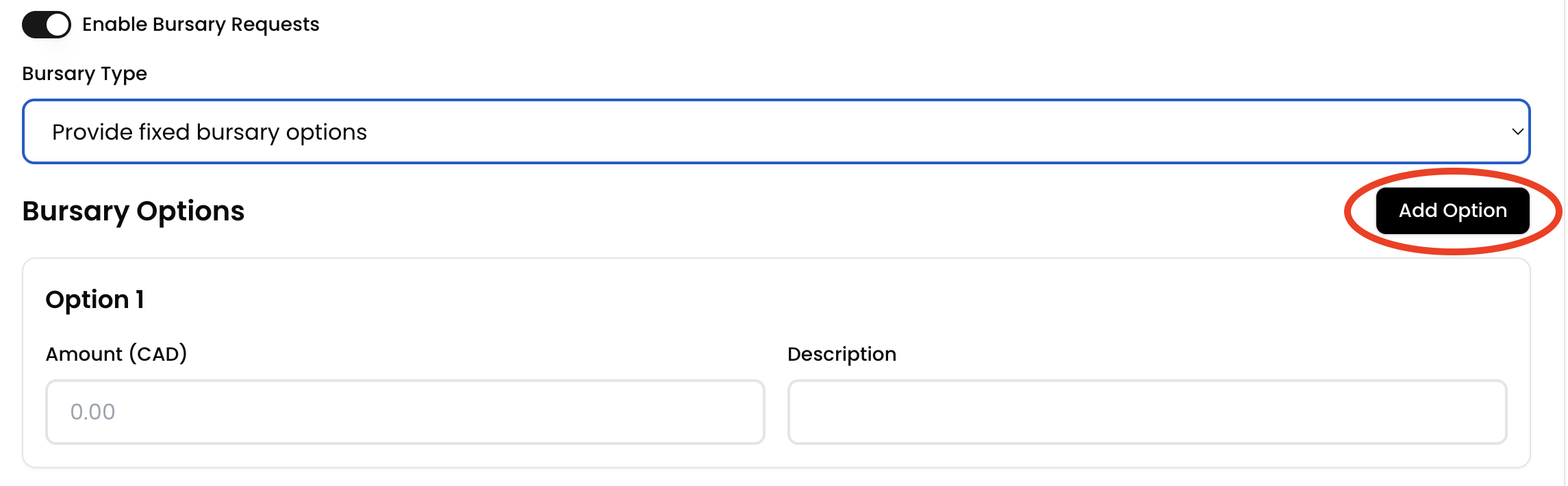
Choose Bursary Type
-
Choose Your Amount: Attendees can request a
chosecustomyouramount. -
Set Amount: You define a fixed amount
bursaryperorbursary.
-
- Set the Amount (if
it isusing asetfixedamount If it is for a set amount selectbursary)
Enter theamountvalue to be awarded per approved request.- Add a
descriptionDescription (if using a fixed bursary)
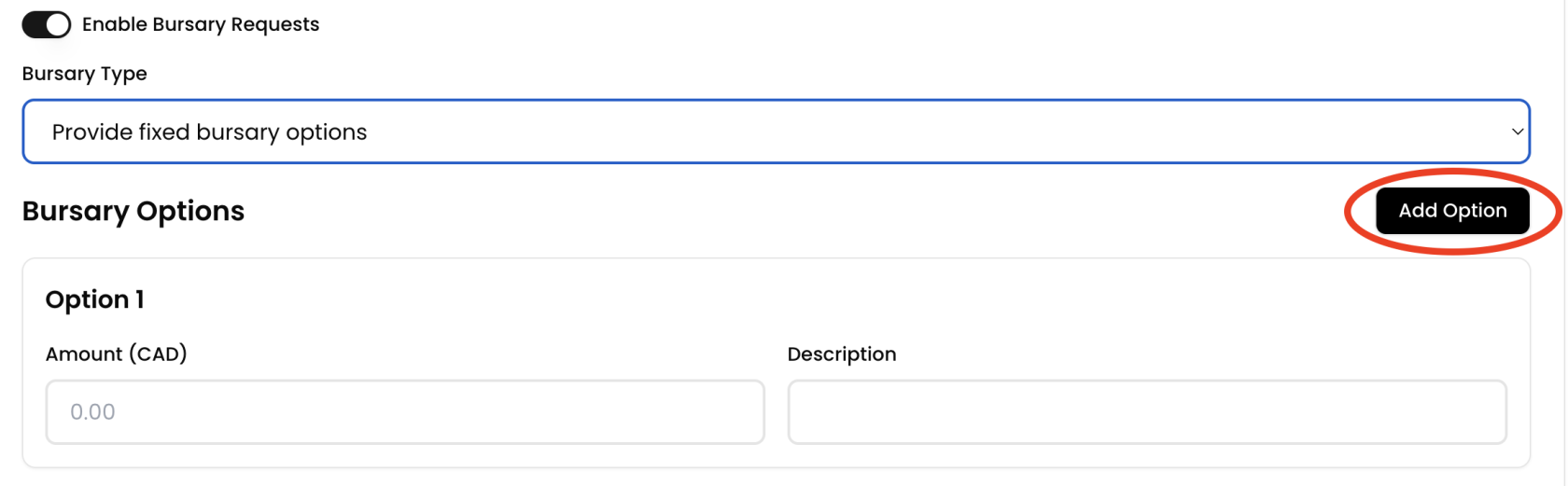
Provide context or eligibility criteria for the bursary. Optional(Optional)addAddmoreMore Bursary Options
Include additional bursaryoptiontypes or tiers if needed.
- Save
changes/Changes / Create Event
Finalize your event setup with bursary options included.