FAQ
Summary
This guide walks you through some frequently asked questions and their answers.
What to do if my Organization Access Code leaks?
- Log in to your organization
Ensure you're signed in to your organization. - Navigate to the Members page
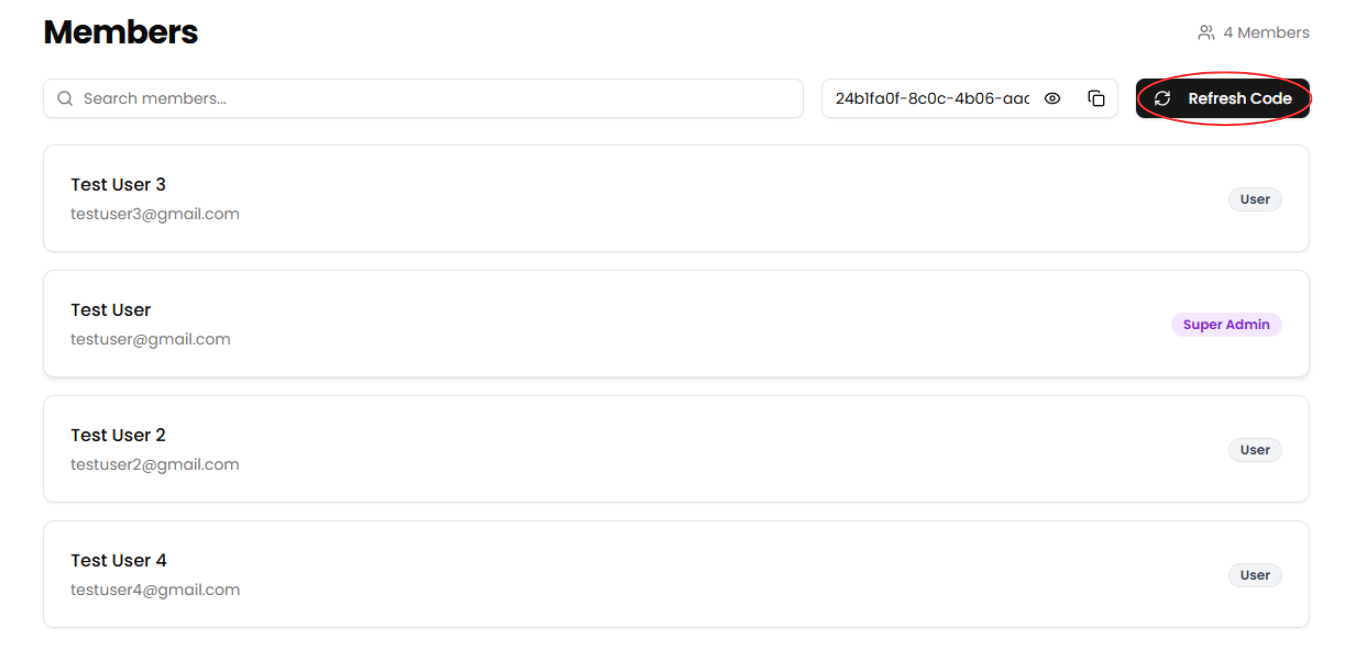
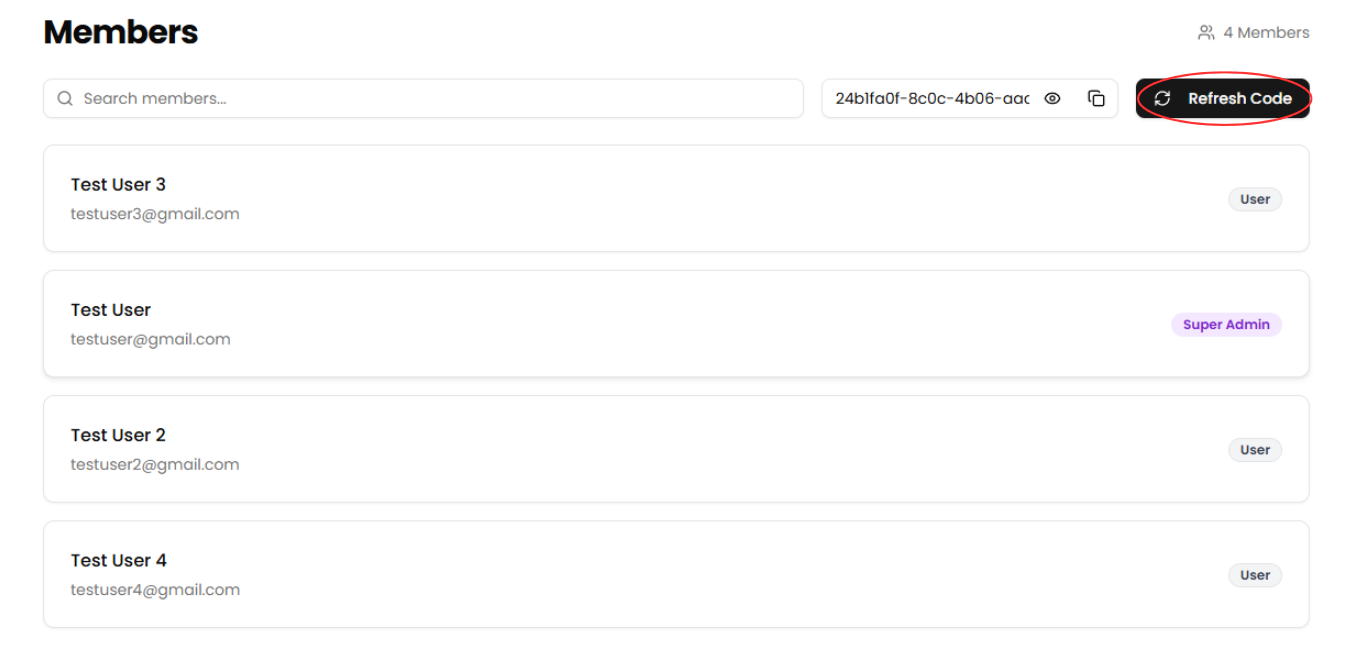
Use the sidebar to access the Members section. - Click "Refresh Code"
Select the Refresh Code button to receive a new organization access code and invalidate the old one.
What to do if a ticket fails to send?
- Log in to your organization
Ensure you're signed in to your organization. - Navigate to the Events Dashboard
Use the sidebar to access the Dashboard section. - Find Your Event in the Calendar View
Use the calendar to navigate to the date of your event. - Click on the Event Date
This will display all events scheduled for that day. - Select Your Event
Click on the event with the failed ticket. - Click "View Attendees"
Select the View Attendees button to view the attendees of the event. - Find the attendee with the failed ticket
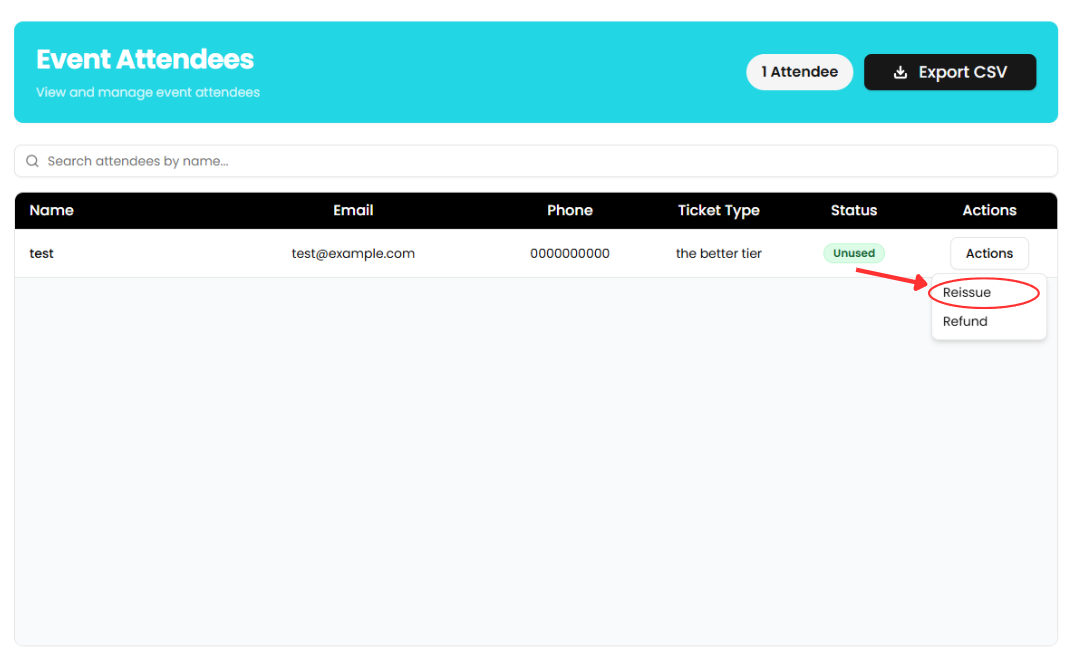
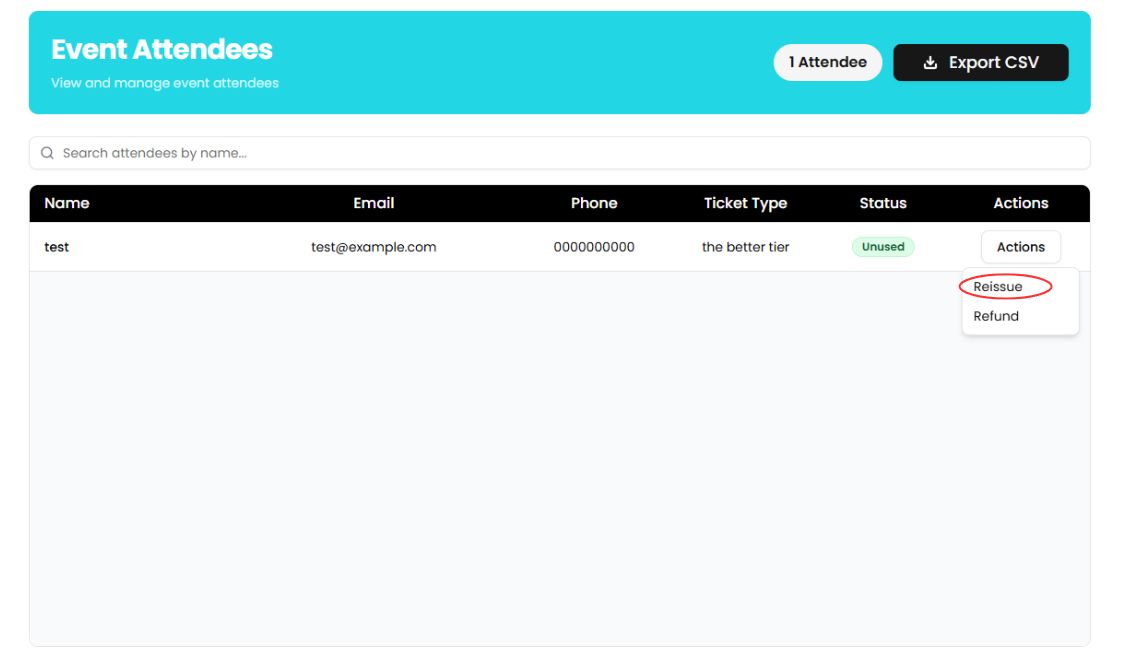
Scroll down the list of attendees or search by name to find the attendee who's ticket failed to send. - Reissue the attendee's ticket
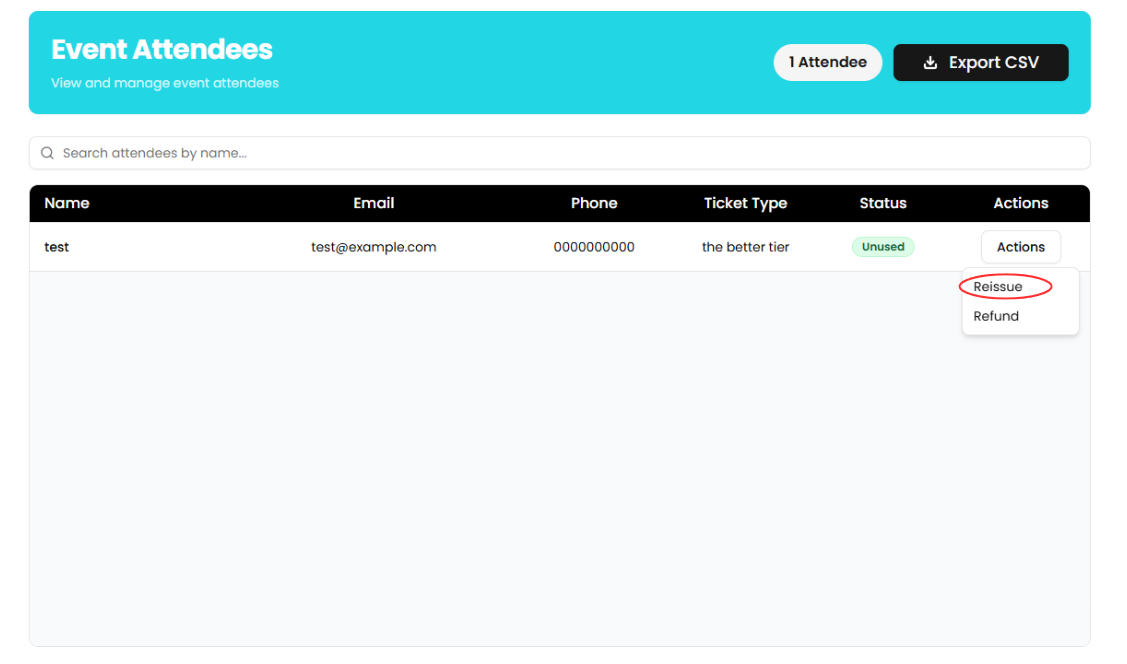
Select the Actions button, select Reissue from the dropdown and enter the attendee's email. Ensure that the email is spelled correctly, then press the Reissue Ticket button.
What to do if my payouts aren't going through?
- Log in to your organization
Ensure you're signed in to your organization. - Navigate to the Finances page
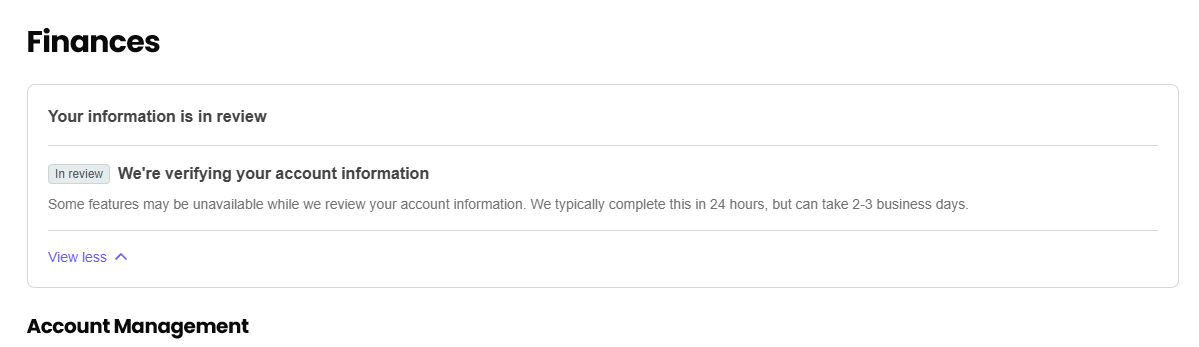
Use the sidebar to access the Finances section. - Check for an alert
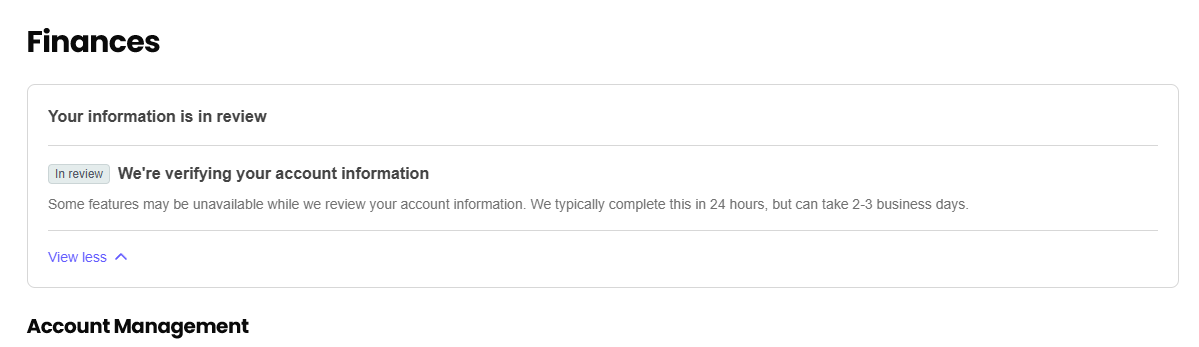
Check to see if there is an alert on the Finances page above the Account Management section. An example of an alert you could receive is asking for your ID. Complete the steps in the alert to start receiving payouts again.
What to do if I forget my password?
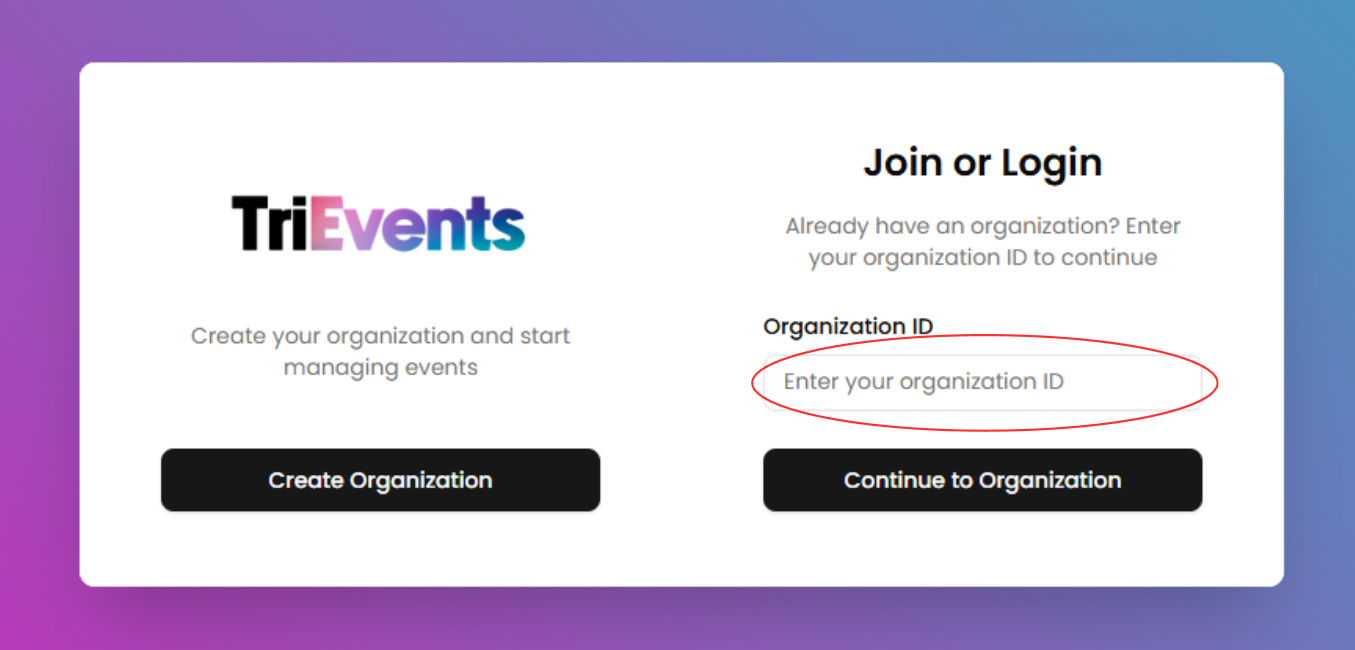
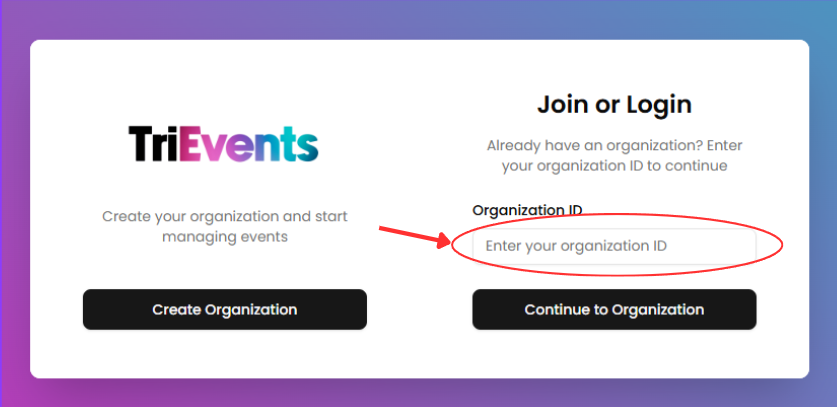
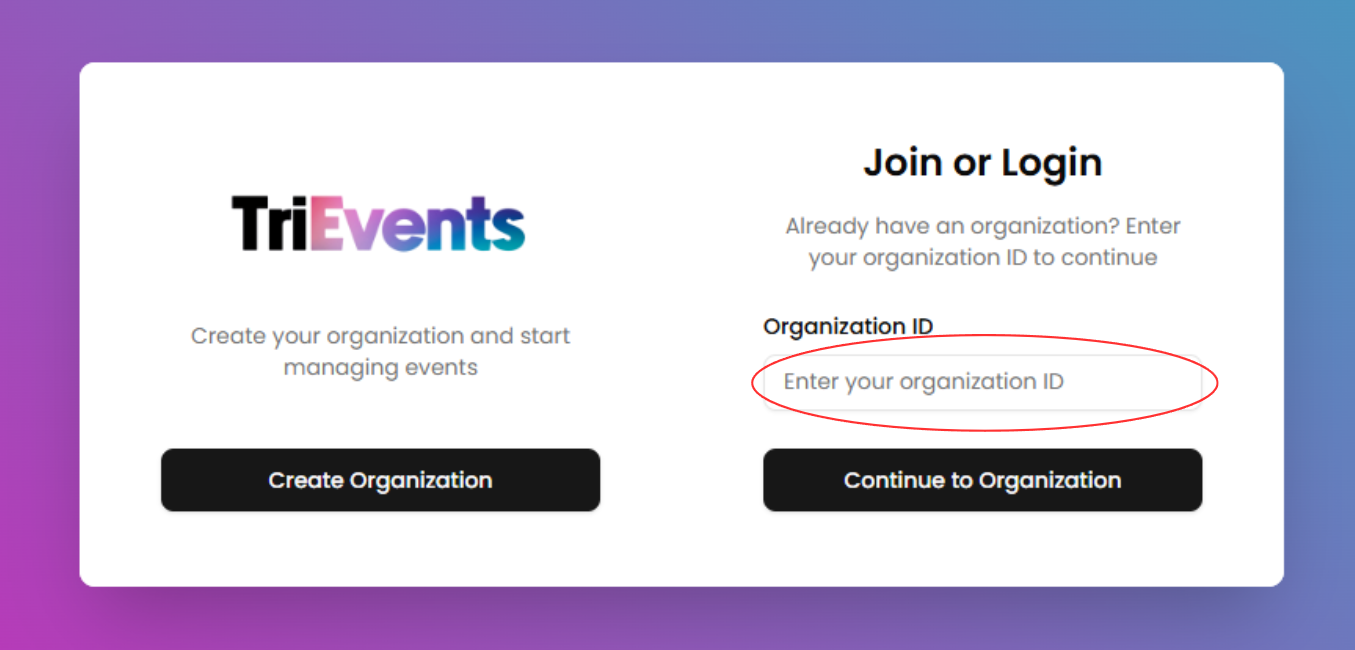
- Enter your organization's "Organization ID"
On the authentication page, enter your organization's Organization ID in the field and click the Continue to Organization button.
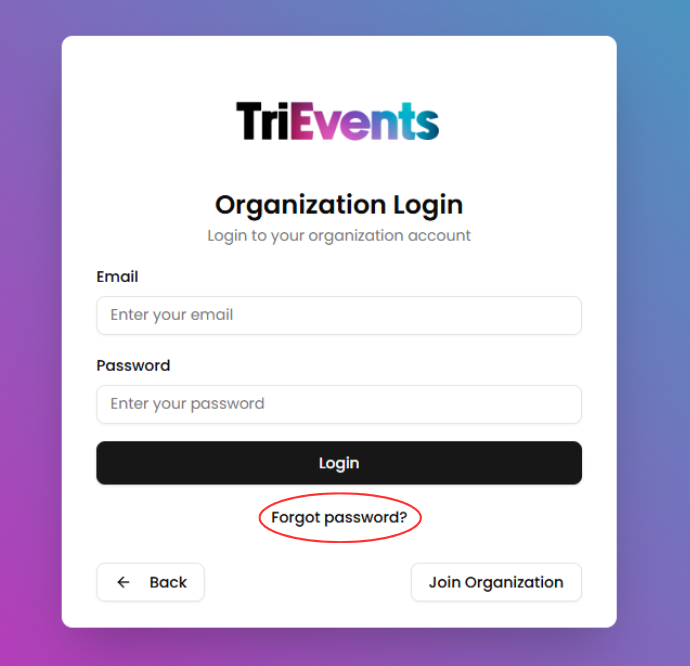
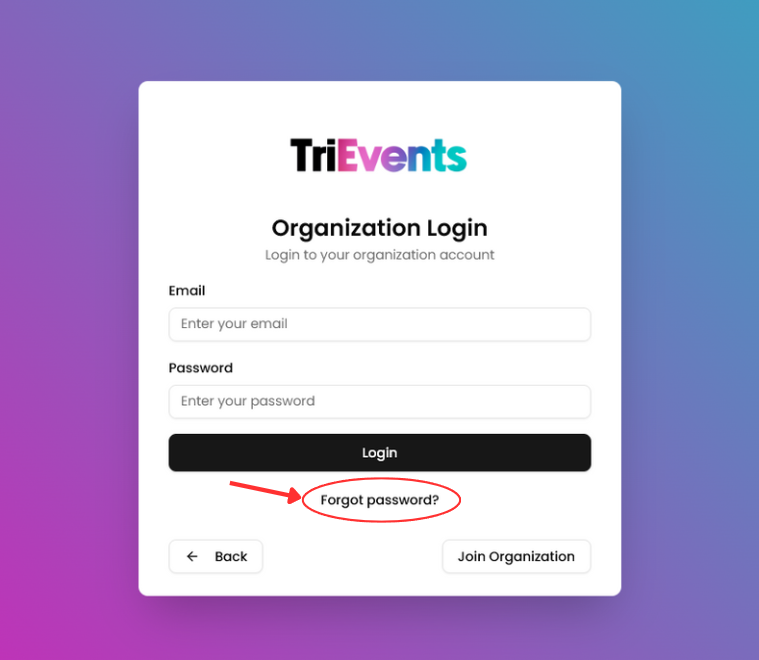
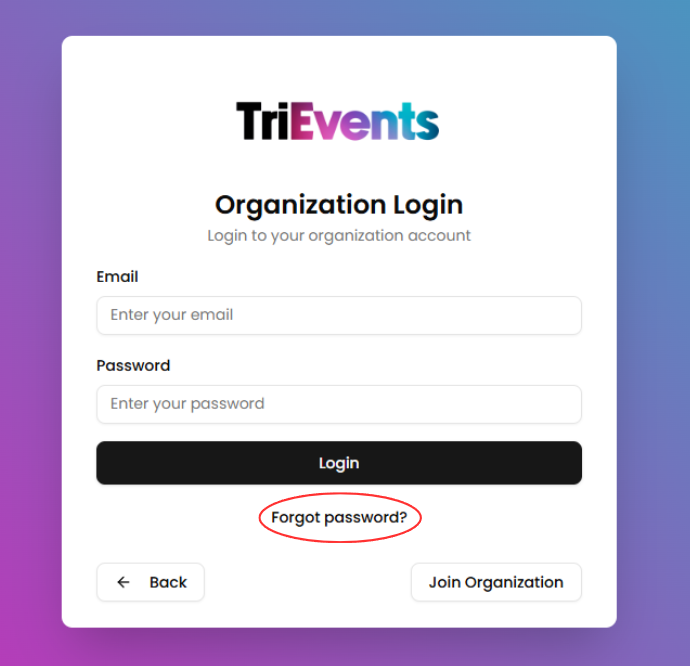
- Click "Forgot password?"
Select the Forgot password? button on the login page.
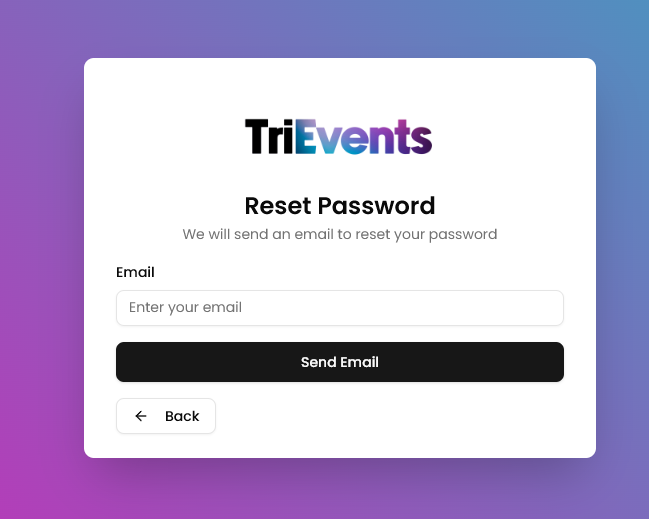
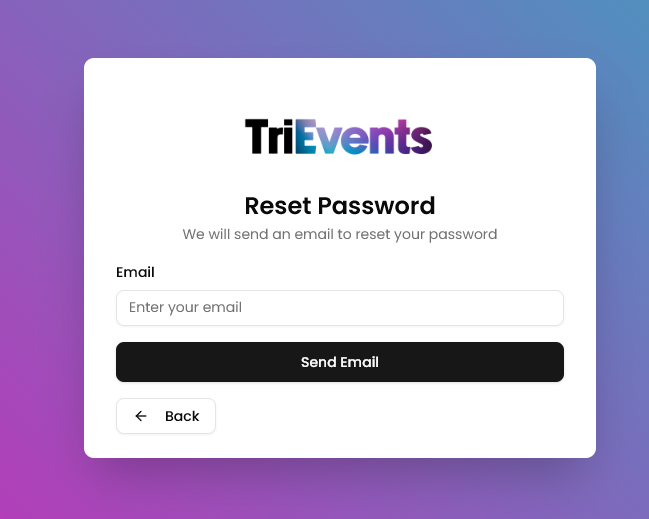
- Enter you email adress
Enter your email address into the field and press the Send Email button to receive the password change email.
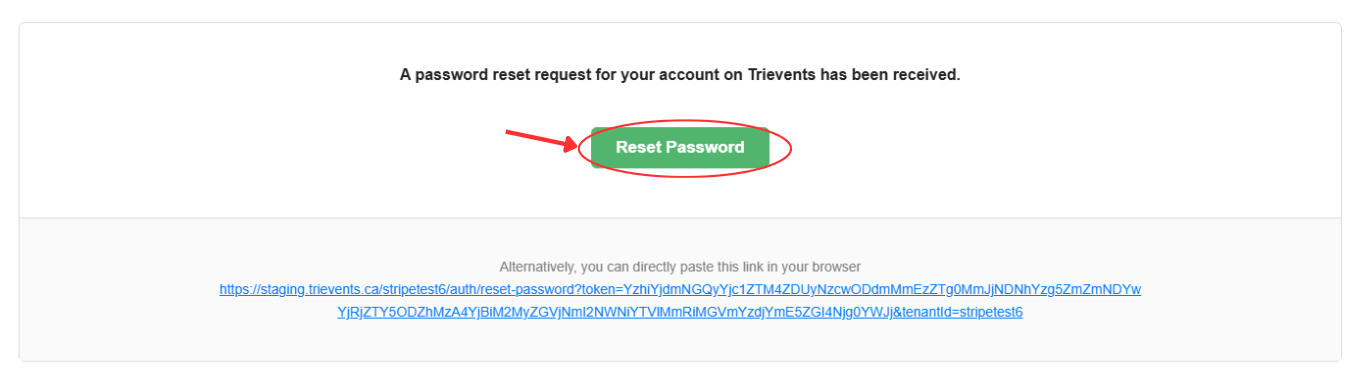
- Navigate to the password change email
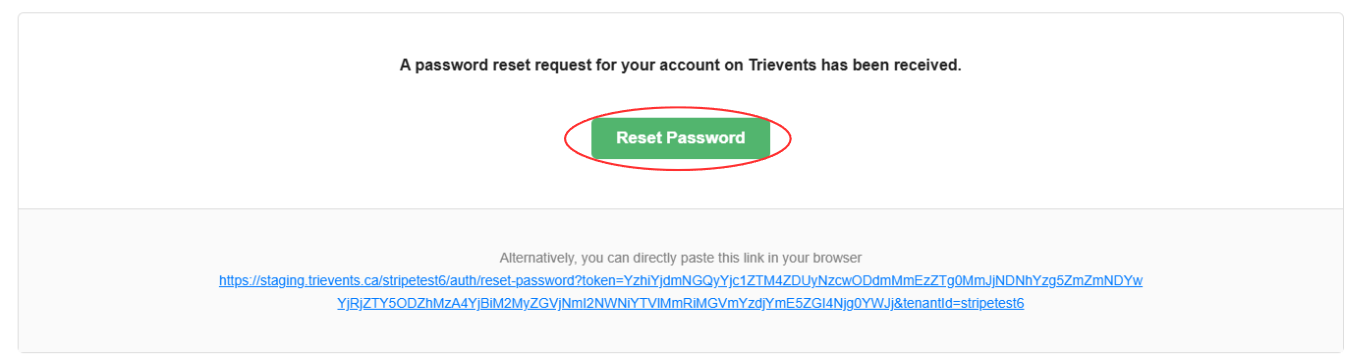
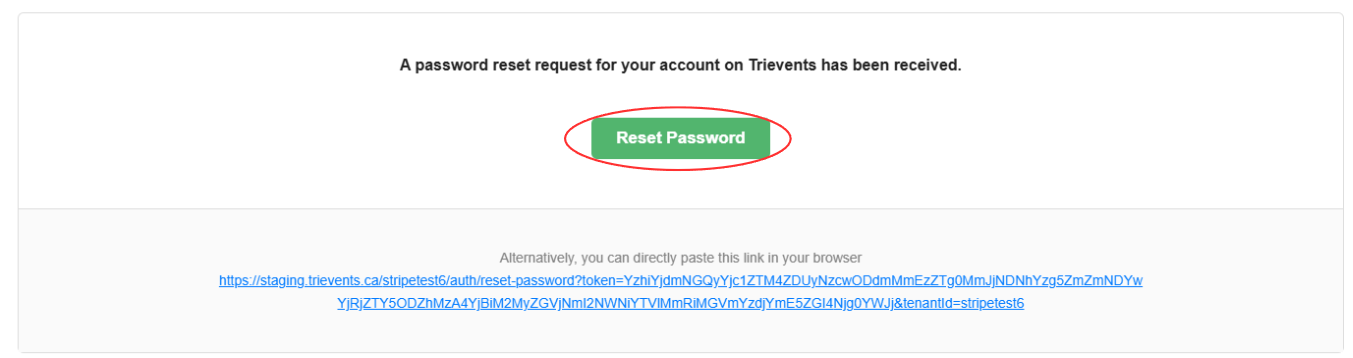
Go to your email inbox and open the password change email. Click on the Reset Password button.
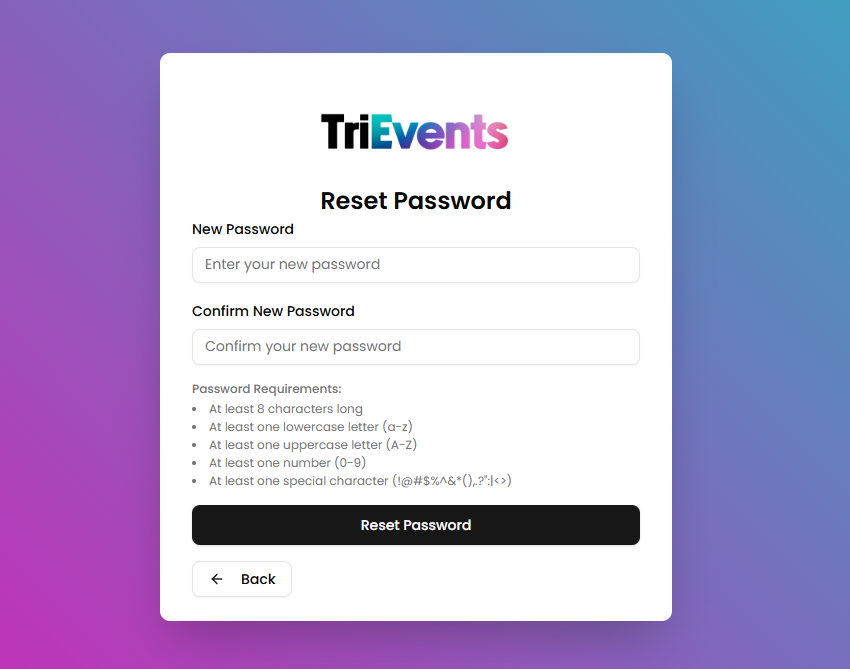
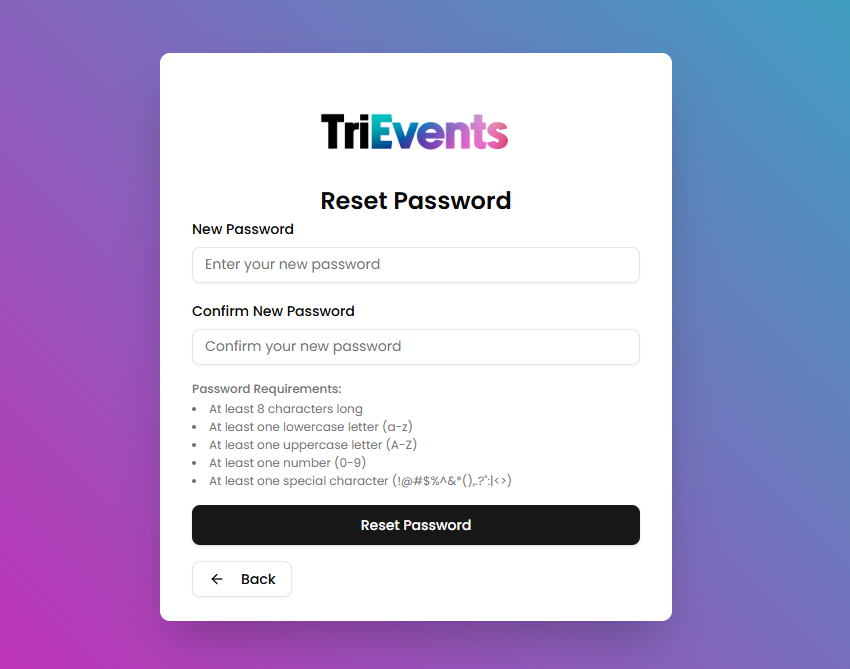
- Choose a new password
Enter a new password into the fields and press the Reset Password button to reset your password.