Join/Login to an Organization
Summary
This guide walks you through howlogging to loginin to your organization on TriEvents,TriEvents and how to onboardonboarding new members into theyour organization.
How to Login to an Organization
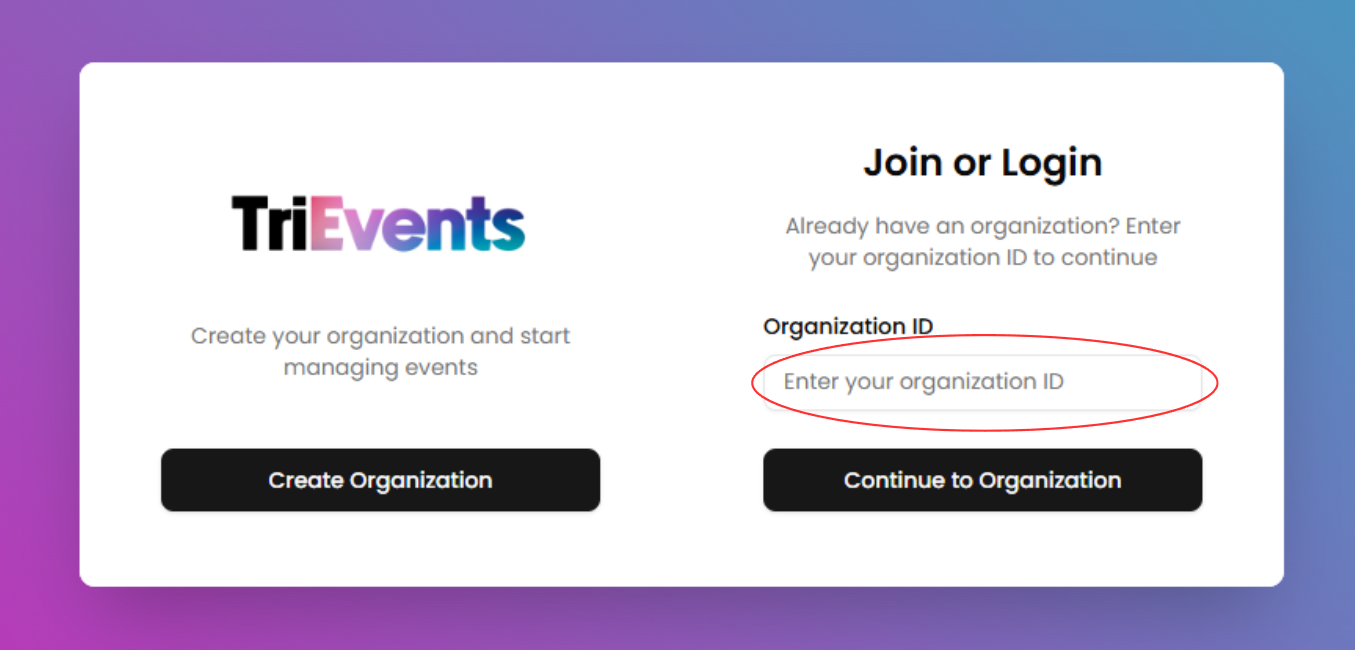
EnterNavigate to TriEvents.ca
Open yourorganization'web browser and go to TriEvents.ca to begin the setup process.- Enter Your Organization’s
"OrganizationID"ID
On the authentication page, enter yourorganization'organization’s Organization ID in thefieldprovidedandfield, then clicktheContinue to Organizationbutton.to proceed.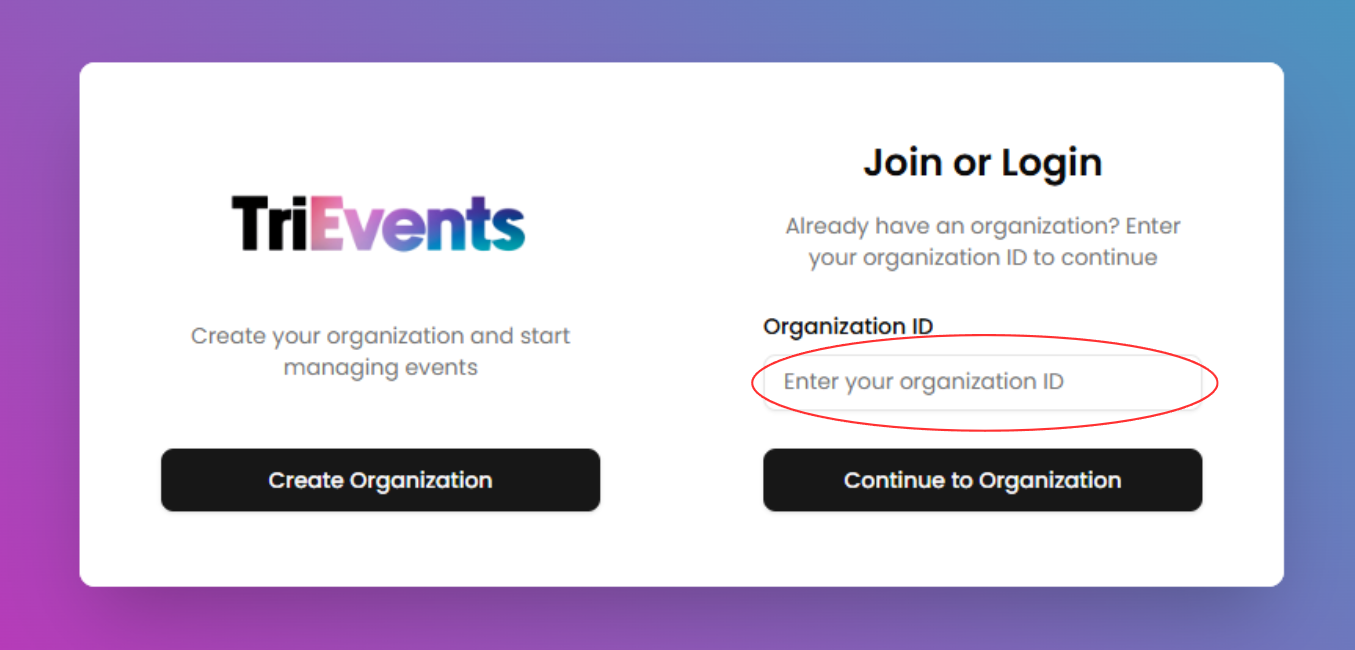
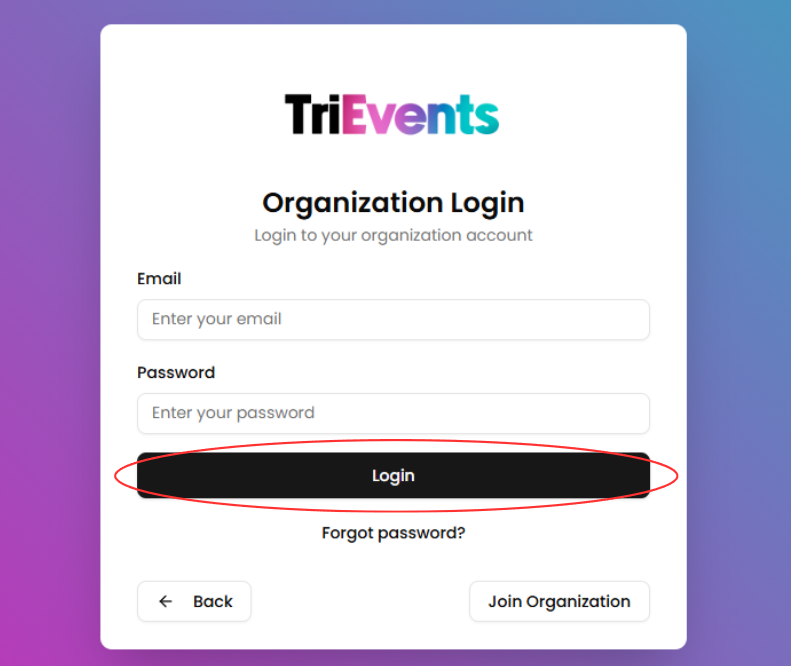
- Fill in Login Information
ProvideEntertheyourfollowinglogininformation:credentials to access your organization’s account:
- Email: Your registered email address
- Password: Your account password
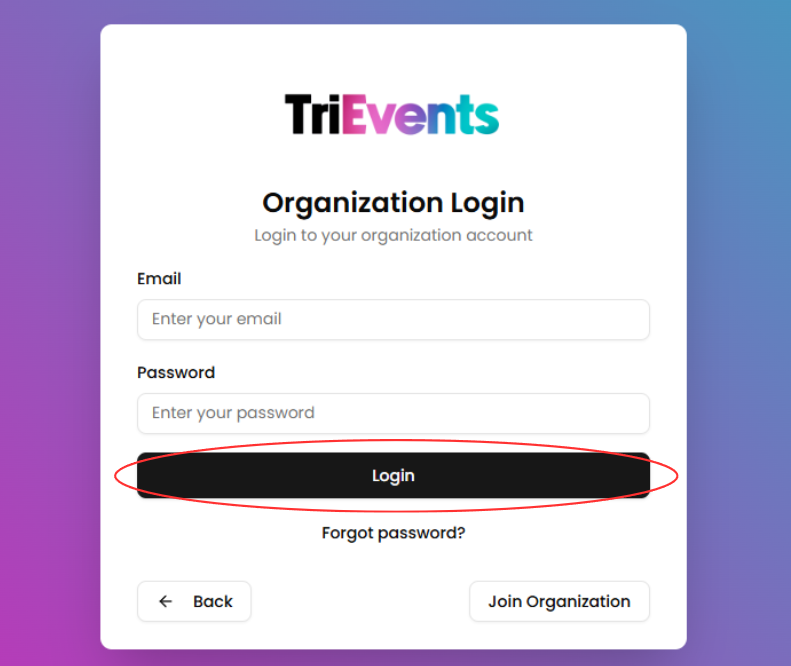
- Click "Login:
Click the Login button tologinaccesstoyourtheorganization’sorganization.dashboard.
How to Join/Add a Member to an Organization
In order toTo add a member to an organization,member, you willmust need tofirst obtain thatthe organization'organization’s access code. This code is required for new members to join the organization.
- Log in to your organization
Ensure you're signed in to your organization. - Navigate to the Members page
Use the sidebar to access the Members section. - Copy the organization access code
Click the eye icon to reveal the organization access
codecode, or press the copy icon to copytheitaccesstocode.yourOnceclipboard.If the code has been used
toforonboard your membersonboarding or ifyouritaccessiscodecompromised,leak, you can pressclick the Refresh Code button toobtaingenerate a new code and invalidate the old one.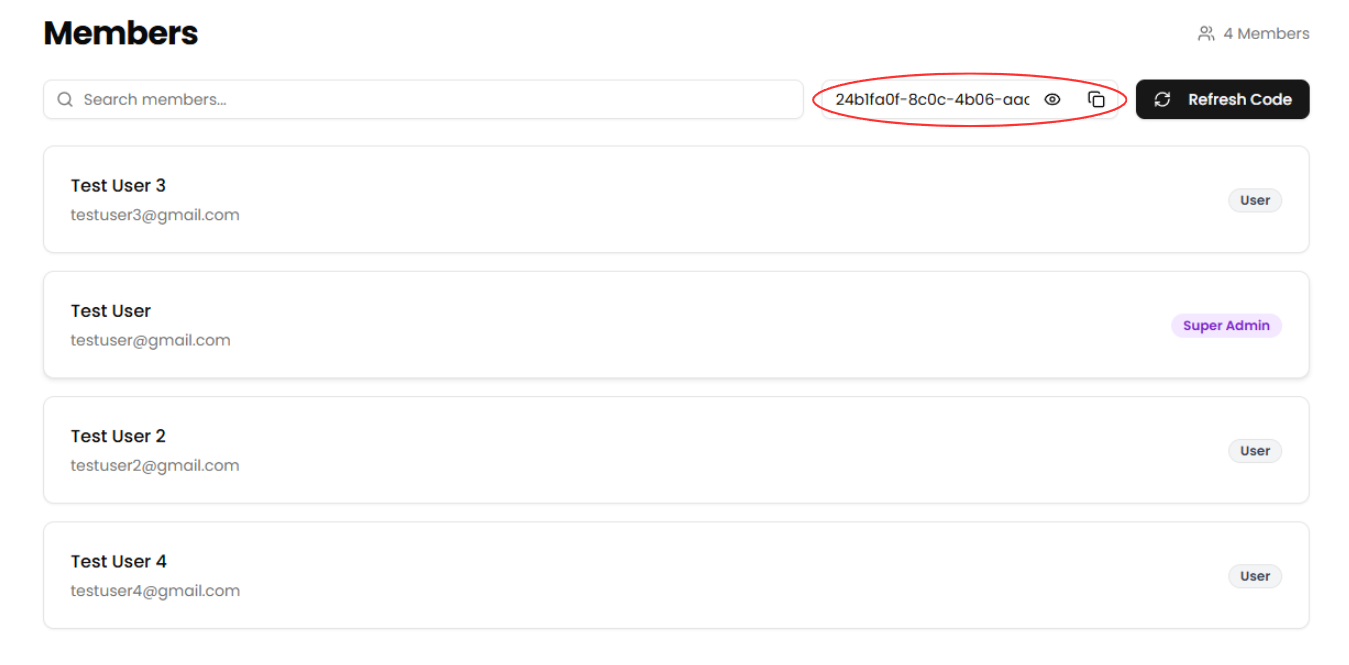
GiveShare theaccessAccesscodeCodetowithyourYourmembersMembersGiveProvide the copied organization access code to any members you want tojoinonboard into your organization.
Member Onboarding: Next Steps
The remaining steps in this section will beguide performedyou through the process from the perspective of thea member joining the organizationorganization.
EnterNavigate to TriEvents.ca
Open yourorganization'web browser and go to TriEvents.ca to begin the setup process.- Enter Your Organization’s
"OrganizationID"ID
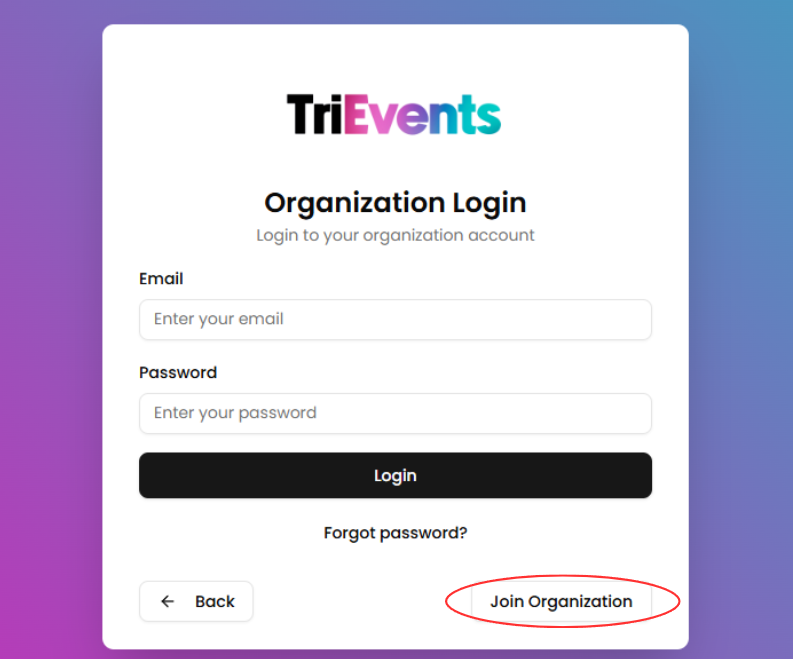
On the authentication page, enter yourorganization'organization’s Organization IDprovided by a member of your organizationin thefieldprovidedandfield, then clicktheContinue to Organizationbutton.to proceed. - Click "Join Organization"
On the authentication page,pressclick the Join Organizationpagebutton to switch to theJoinmemberOrganizationonbaording page.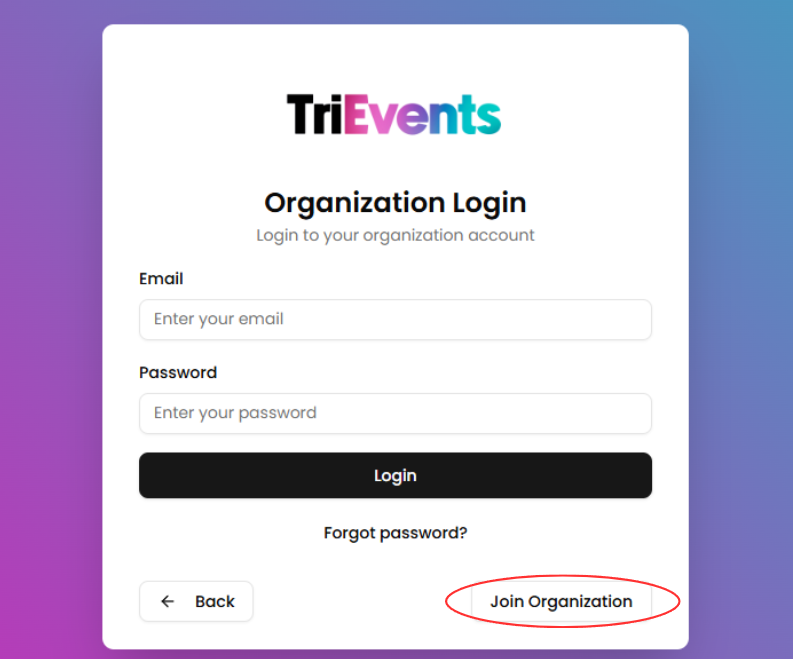
- Fill in User Information
ProvideEnter the
followingdetailsinformation:
to- create your user account and join the organization:
- Name: Your full name
- Email: Your email address
- Password:
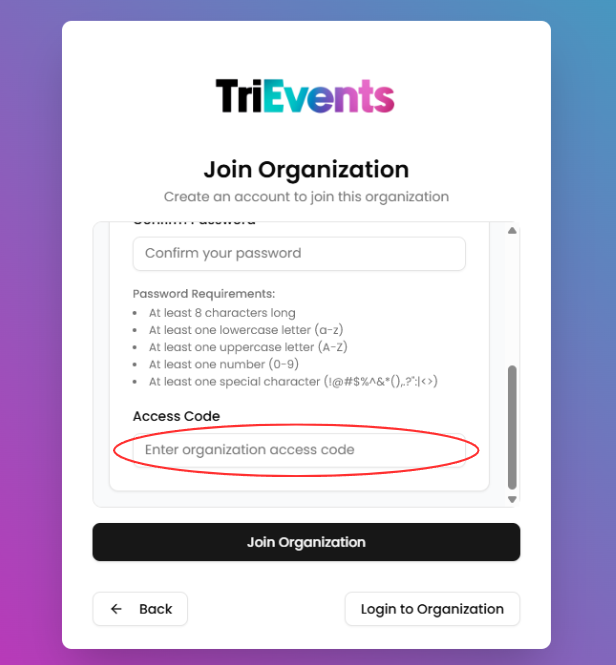
YourA secure password for your account - Access Code:
AnThe access code provided bysomeoneain yourcurrent organizationto join the organizationmember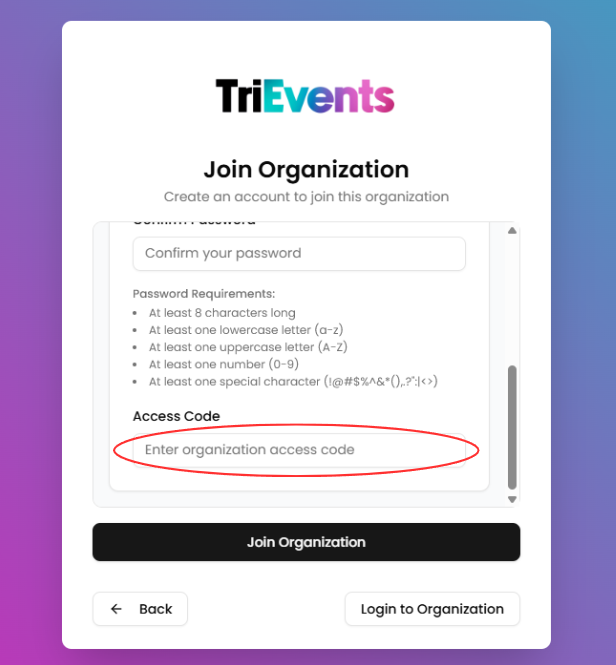
- Click "Join
Organization"Organization."ClickAfter filling in your information, click the Join Organization button. Your user account will becreated in the organizationcreated, andyou willyou’ll be redirected to theorganization'organization’s dashboard.