
Join/Login to an Organization
Summary
This guide walks you through logging in to your organization on TriEvents and onboarding new members into your organization.
How to Login to an Organization
- Navigate to TriEvents.ca
Open your web browser and go to TriEvents.ca to begin the setup process. - Enter Your Organization’s Organization ID
On the authentication page, enter your organization’s Organization ID in the provided field, then click Continue to Organization to proceed.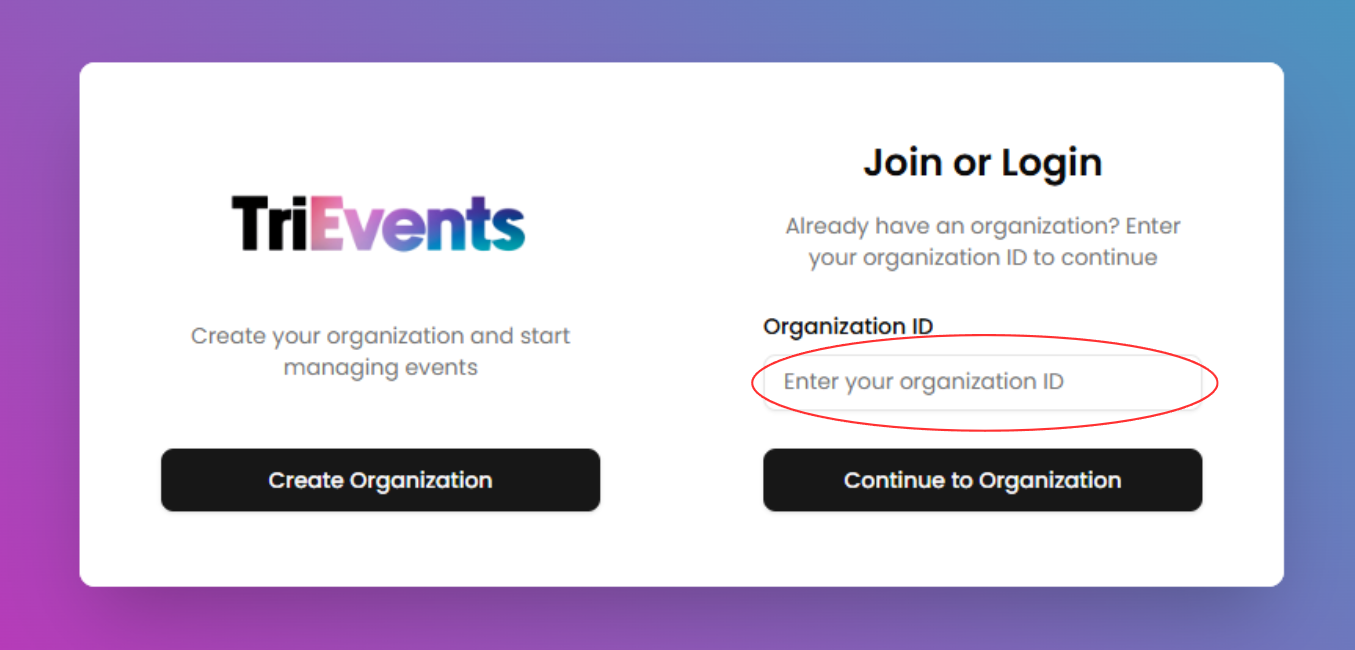
- Fill in Login Information
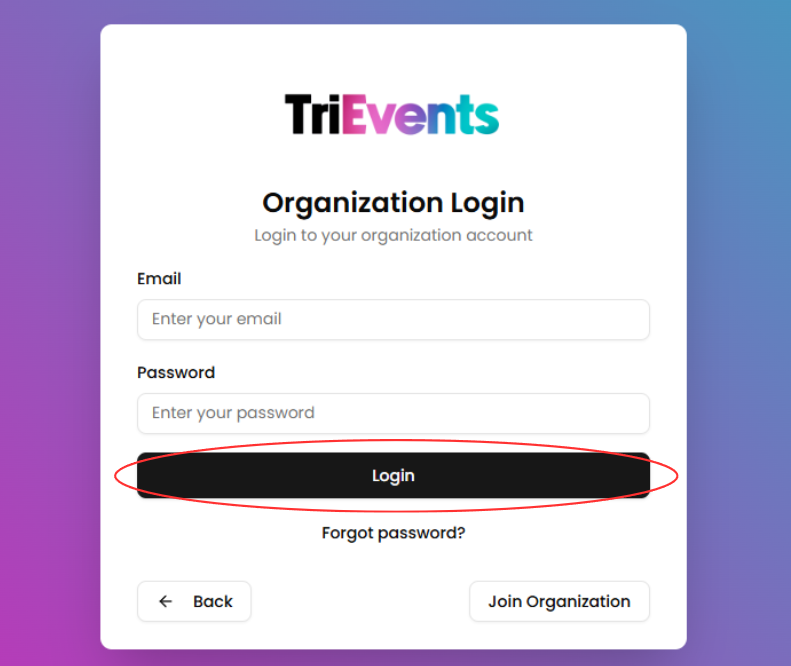
Enter your login credentials to access your organization’s account:
- Email: Your registered email address
- Password: Your account password
- Click "Login:
Click the Login button to access your organization’s dashboard.
How to Add a Member to an Organization
To add a member, you must first obtain the organization’s access code. This code is required for new members to join the organization.
- Log in to your organization
Ensure you're signed in to your organization. - Navigate to the Members page
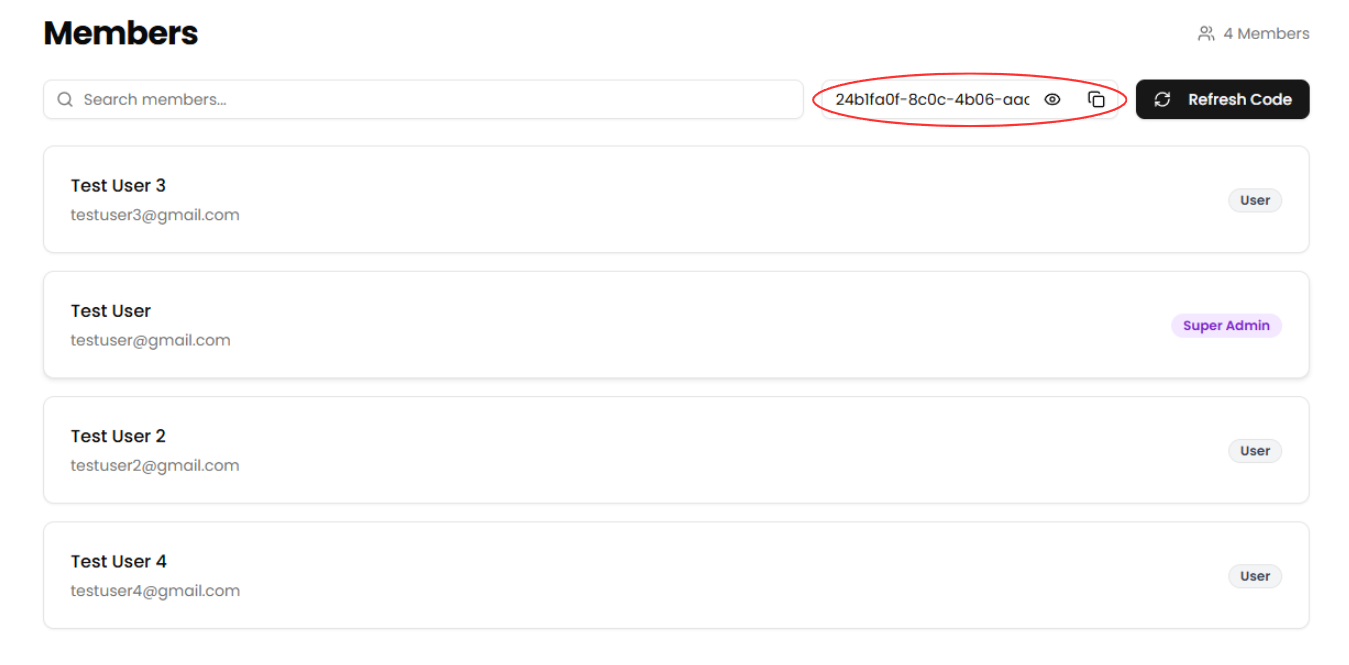
Use the sidebar to access the Members section. - Copy the organization access code
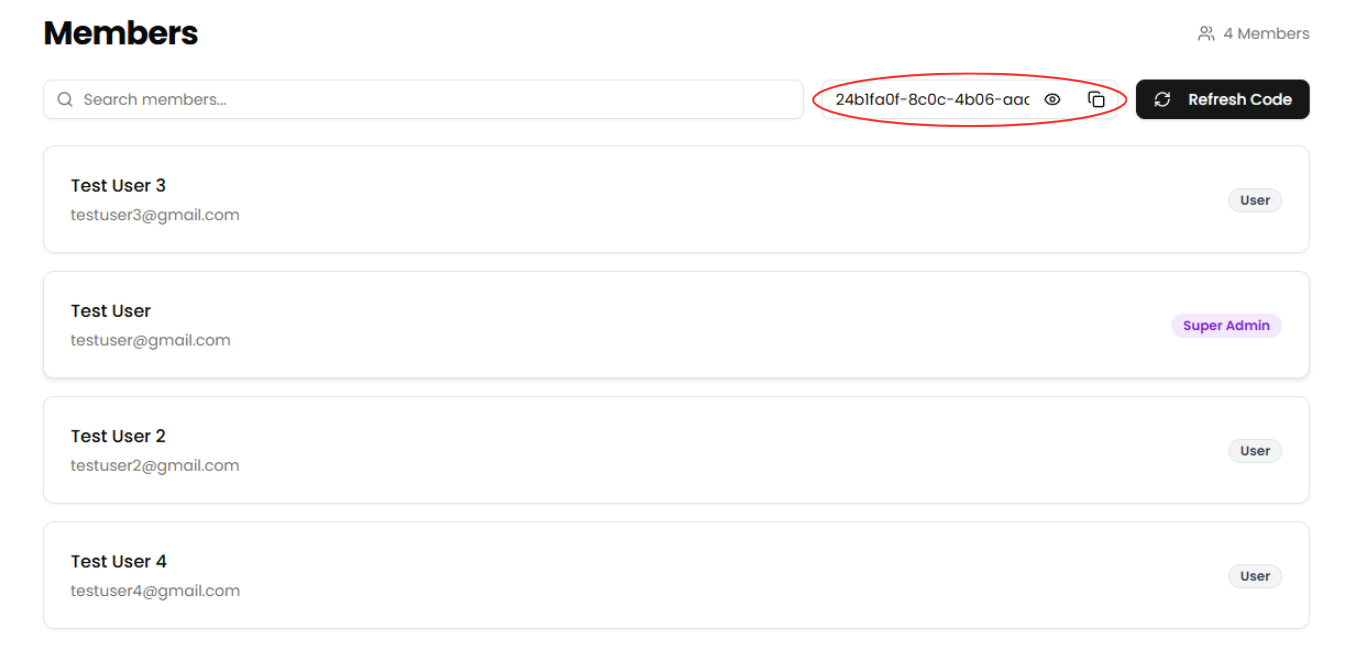
Click the eye icon to reveal the organization access code, or press the copy icon to copy it to your clipboard.
If the code has been used for onboarding or if it is compromised, click the Refresh Code button to generate a new code and invalidate the old one.
- Share the Access Code with Your Members
Provide the copied organization access code to any members you want to onboard into your organization.
Member Onboarding: Next Steps
The remaining steps in this section will guide you through the process from the perspective of a member joining the organization.
- Navigate to TriEvents.ca
Open your web browser and go to TriEvents.ca to begin the setup process. - Enter Your Organization’s Organization ID
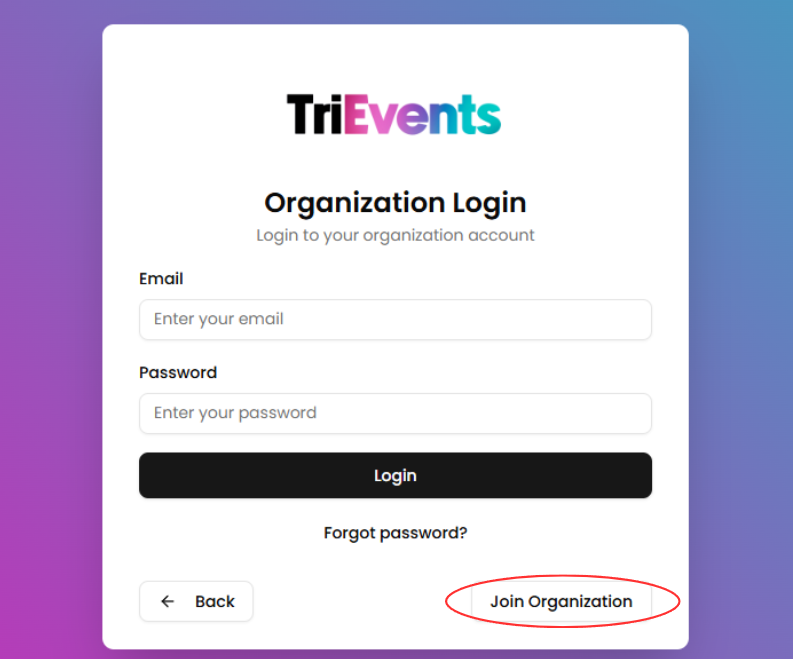
On the authentication page, enter your organization’s Organization ID in the provided field, then click Continue to Organization to proceed. - Click "Join Organization"
On the authentication page, click the Join Organization button to switch to the member onbaording page.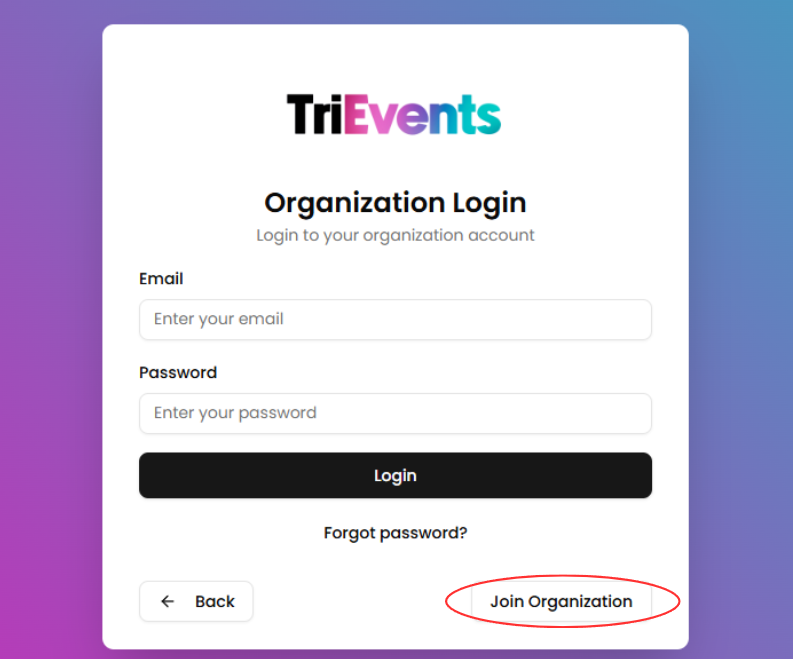
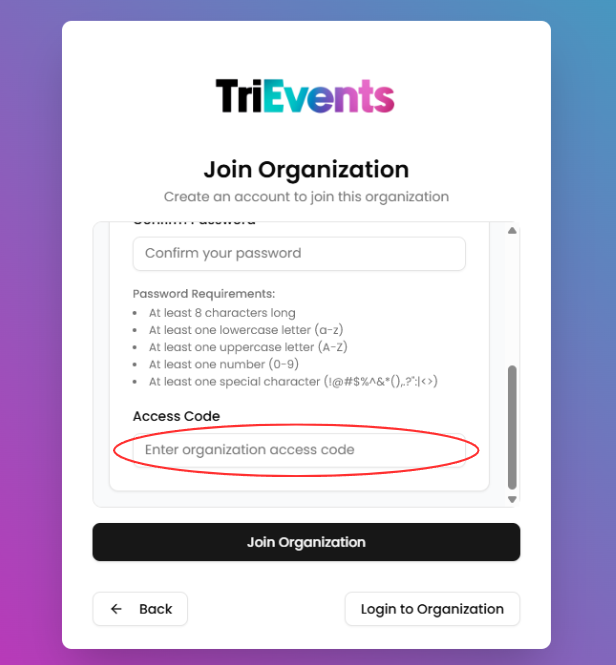
- Fill in User Information
Enter the details to create your user account and join the organization:
- Name: Your full name
- Email: Your email address
- Password: A secure password for your account
- Access Code: The access code provided by a current organization member
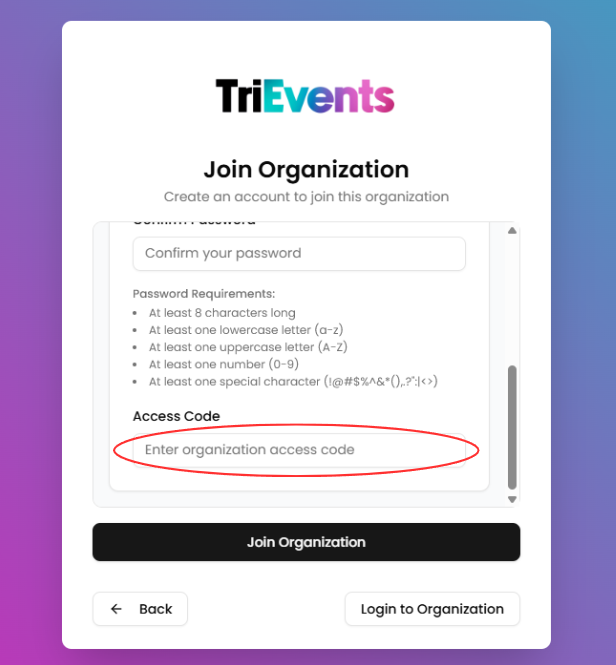
- Click "Join Organization."
After filling in your information, click the Join Organization button. Your user account will be created, and you’ll be redirected to the organization’s dashboard.
No comments to display
No comments to display