
Email Templates
Feature Summary
The email templates let organizers add a custom message to the ticket confirmation email, such as reminders or key event details.
Who can use this feature
All organization members are allowed to create email templates.
Video Tutorial
How to Create a Template
- Log in to your organization
Ensure you're signed in to your organization. - Navigate to the Email Dashboard Tab
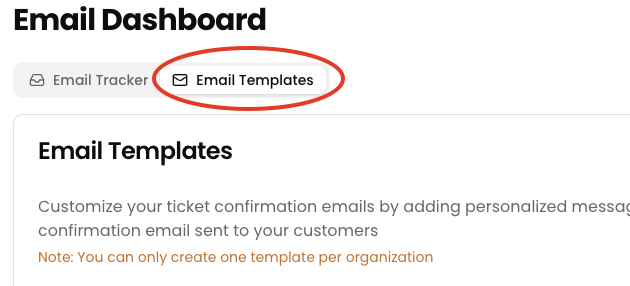
Use the sidebar to access the Email Dashboard section. - Open the Email Template Tab
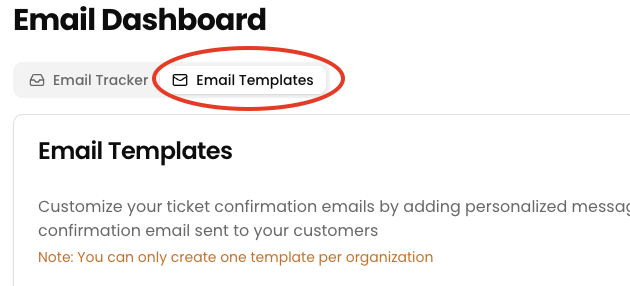
Click on the Email Templates tab to manage or create templates.
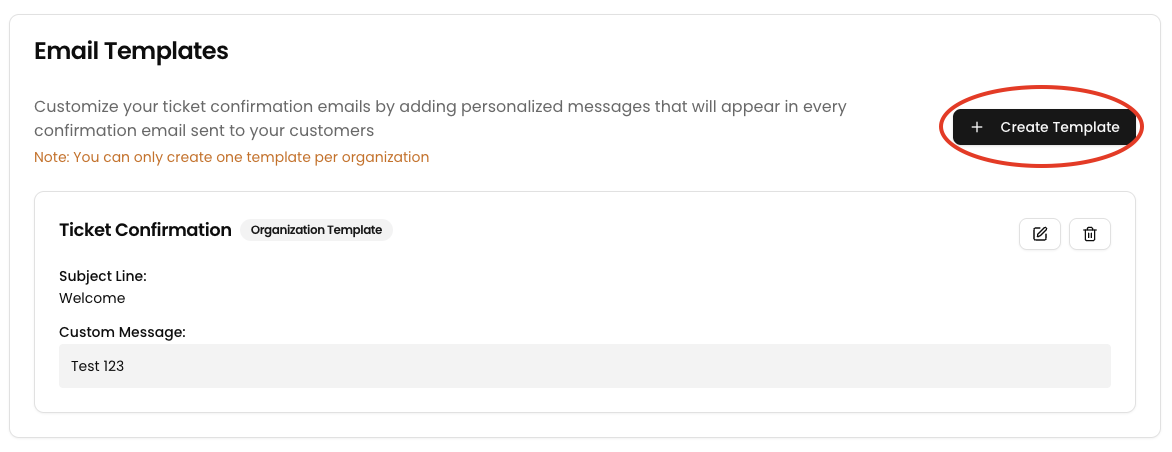
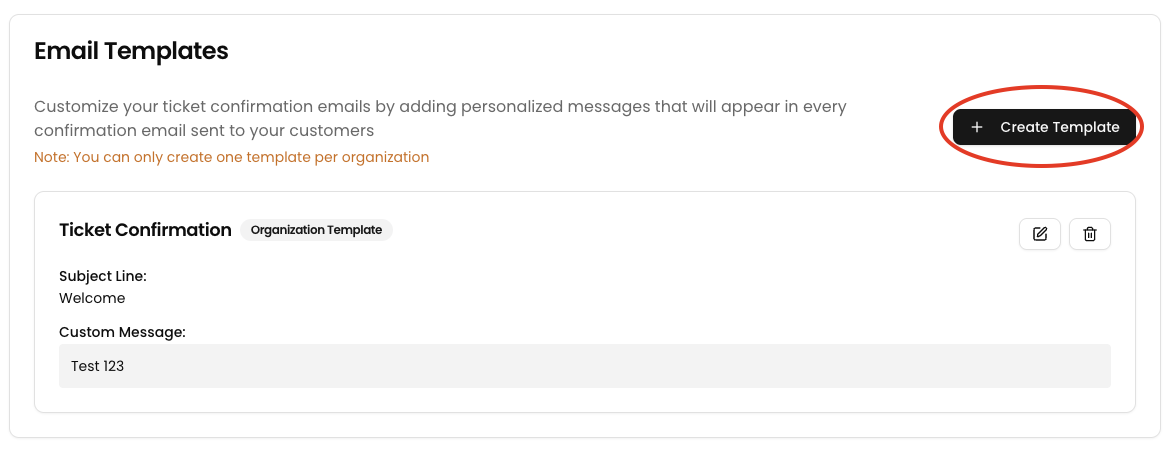
- Click “Create Template”
Start a new email template.
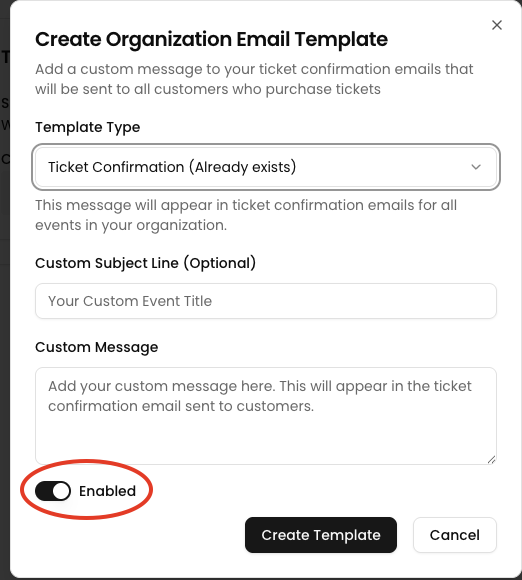
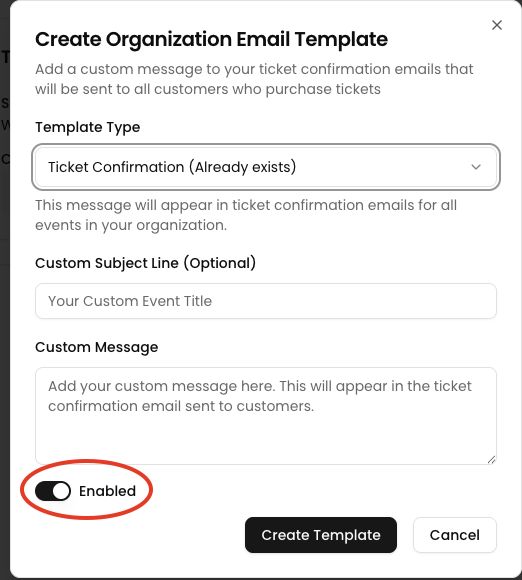
- Select Template Type
Choose the type of template you'd like to create:
- Ticket Confirmation: Customize the subject line and message for ticket confirmation emails.
- Enter Template Details
- (Optional) Add your custom subject line.
- Write your custom message for attendees.
- Enable the Template
Toggle the template to active.
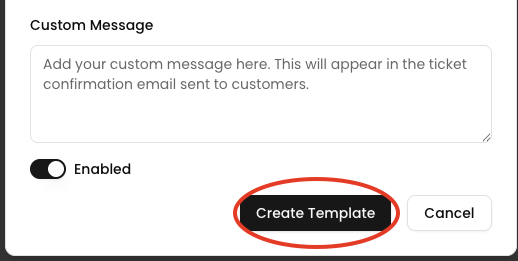
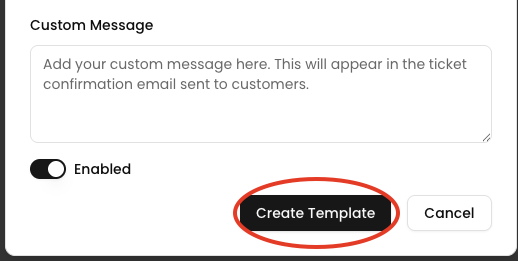
- Click “Create Template”
Save your new template.
NOTE: You can only have one template per type.
How to Edit/Delete a Template
- Log in to your organization
Ensure you're signed in to your organization. - Navigate to the Email Dashboard Tab
Use the sidebar to access the Email Dashboard section. - Open the Email Template Tab
Click on the Email Templates tab to manage or create templates. - Locate the Template
Find the email template you want to update - Select an Action
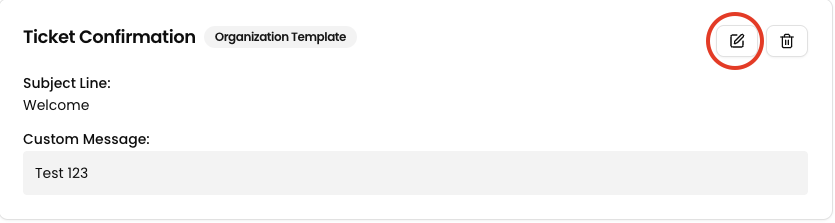
- Click the edit icon to modify the template.
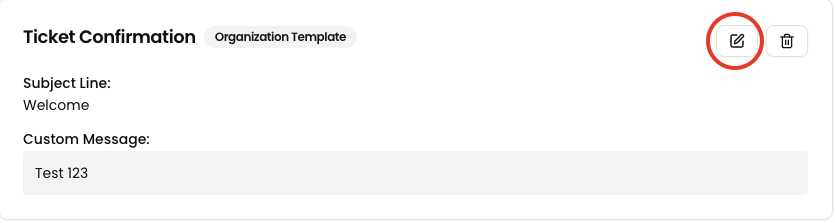
-
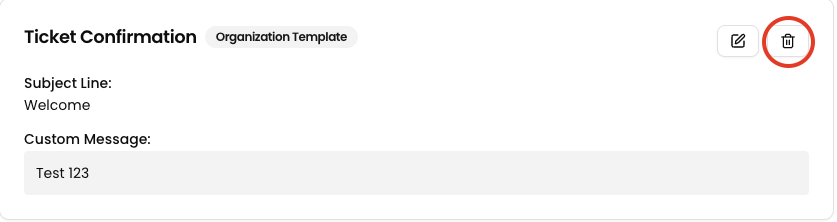
Click the delete icon to permanently remove it.
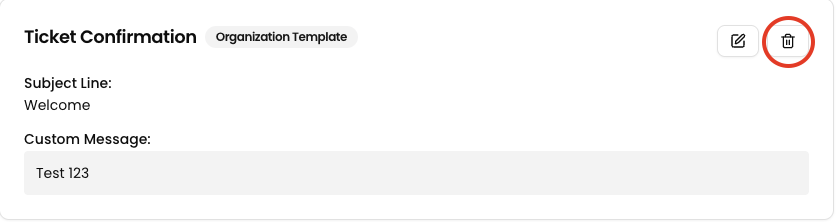
- Click the edit icon to modify the template.
- If Editing:
-
Update the message content.
- (Optional) Update the subject line
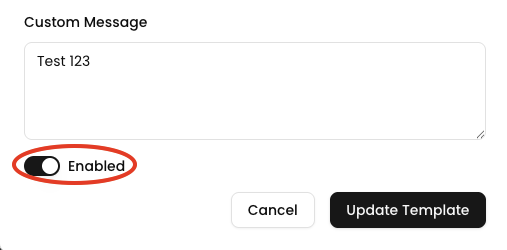
- (Optional) Disable the template if you don’t want it to be active.
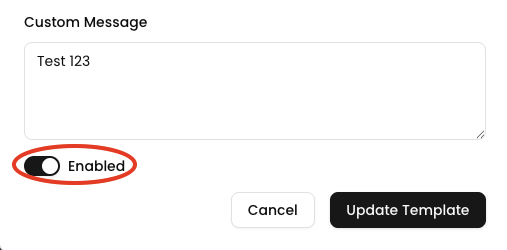
-
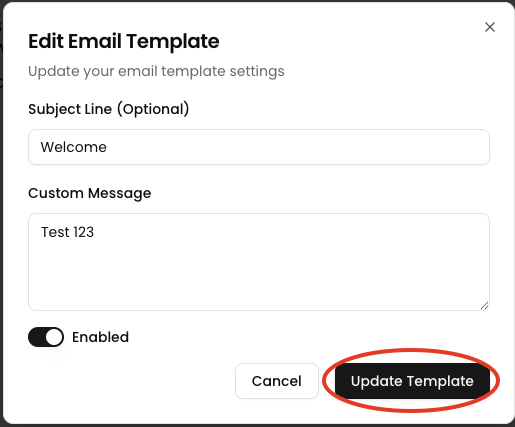
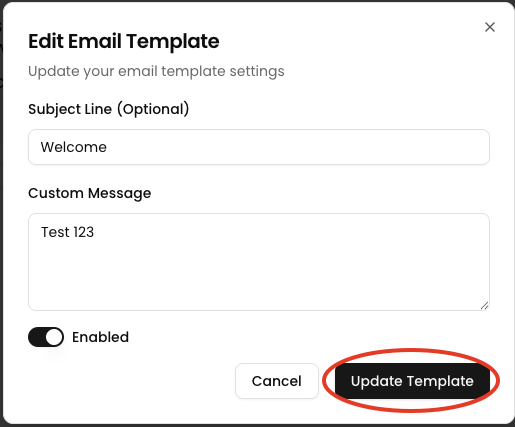
- Click “Update Template”
Save your changes.
No comments to display
No comments to display